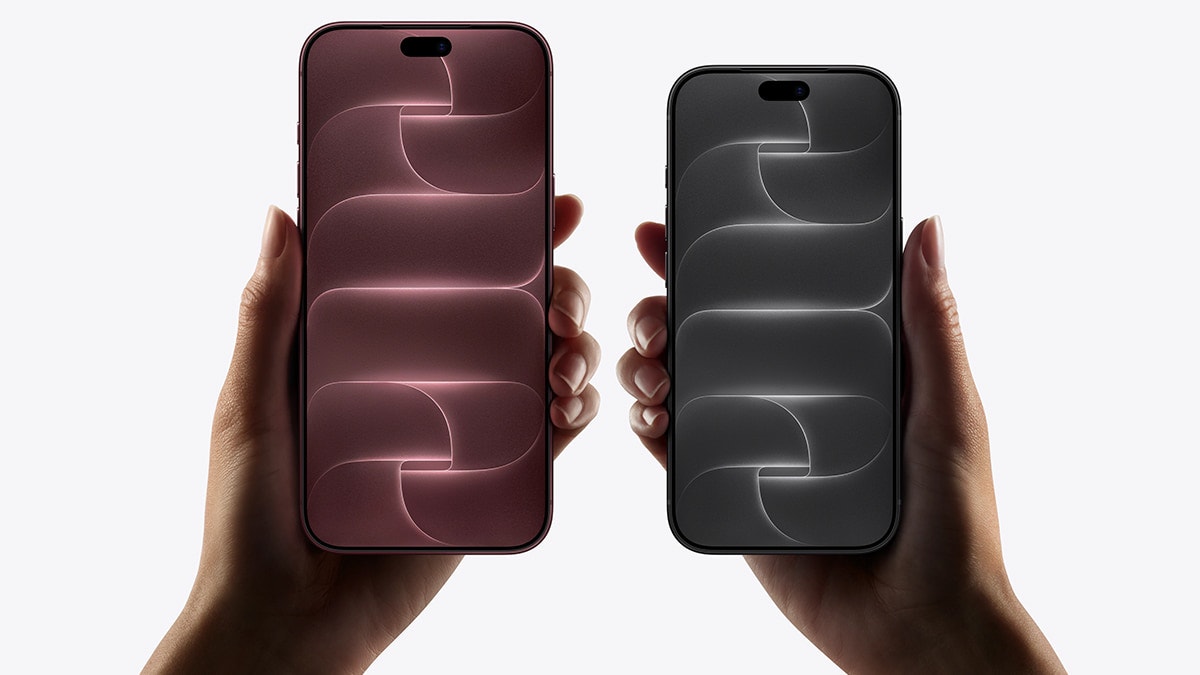
Key points:
- The easiest way to move your information from an older iPhone to an iPhone 18 Pro is Quick Start. If you are switching from Android, Apple’s Move to iOS app guides you through moving your information wirelessly.
- If you have lots of photos, videos or apps to move, or your Wi-Fi is slow or unreliable, using a cable can be a more reliable option. You can also restore your information from a backup saved on a Mac or Windows PC.
- Restoring from iCloud lets you start using the new iPhone sooner while larger items, such as apps, photos and videos, continue downloading in the background.
Setting up a new iPhone doesn’t need to be complicated. Our guide explains the simplest ways to move your contacts, photos, apps, and other information from an older iPhone or Android phone to the iPhone 18 Pro or Pro Max. If you use a Talkmobile SIM-Only plan, we will also show you when to move your physical SIM or eSIM so you can get connected on the new phone.
How to set up an iPhone 18 Pro and transfer everything in brief
| Method | Use Case | Requirements | Primary Action |
|---|---|---|---|
| Wireless Quick Start | You have both iPhones with you | Your old iPhone with Bluetooth and Wi-Fi switched on | Copies your information wirelessly |
| Wired Quick Start | You have lots to move or unreliable Wi-Fi | A USB-C or Lightning cable | Copies your information using a cable |
| iCloud Backup | You want to start using the new phone while apps and photos download | A recent iCloud backup and reliable Wi-Fi | Restores from iCloud in the background |
| Mac / PC Restore | You prefer a computer backup or do not have enough iCloud space | A Mac with Finder or a Windows PC with Apple Devices | Restores from a backup on your computer |
| Move to iOS | Switching from Android | Android phone + Move to iOS app | Moves data from Android |
Our featured deals
- 30 days contract
- Unlimited minutes & texts
- 30 days contract
- Unlimited minutes & texts
- 30 days contract
- Unlimited minutes & texts
Subject to minimum term. Charges and Ts&Cs apply. 5GB fair use limit applies to roaming.
Step-by-step guide on how to set up an iPhone 18 Pro explained
Wireless Quick Start method
If you have both iPhones with you, Quick Start is usually the simplest way to set up the new phone. Turn the new iPhone on, place the old one next to it and follow the instructions on the screen:
- Turn the iPhone 18 Pro on and put it next to your older unlocked iPhone.
- A prompt will appear to Set Up New iPhone on the second, older phone.
- Scan the blue animation on the iPhone 18 Pro's screen from the old phone's camera.
- Enter your old phone's passcode on the iPhone 18 Pro.
- Follow the on-screen instructions to set up Face ID when asked.
- Move your Talkmobile eSIM, or insert your Talkmobile SIM card.
- Choose "Transfer directly from iPhone" and keep both phones together until the transfer finishes.
Wired transfer method
If you have lots of photos, videos, or apps to move, a cable can be more reliable than Wi-Fi and may also be faster. Here is what to do:
- Connect the two phones with a USB-C cable, or a Lightning-to-USB cable if needed.
- Turn on the iPhone 18 Pro and start Quick Start on the older iPhone.
- Follow the pairing steps on screen and enter your passcode when asked.
- Choose Transfer from iPhone and wait for the data to copy across.
Aleksha's advice
Use a cable if your Wi-Fi is slow or unreliable. It can make a large transfer more stable and reduce the chance of needing to start again.
Restore from iCloud backup method
If you already use iCloud Backup, you can restore your new iPhone from the most recent copy of your old phone. Your main settings are restored first, while apps, photos and videos can continue downloading in the background. Here is how:
- From the old iPhone, go to Settings > [Name] > iCloud > iCloud Backup.
- Choose Back Up Now to start the process for the most recent copy of your old phone.
- Turn the iPhone 18 Pro on and follow the initial setup stages as previously detailed.
- Once you get to the Transfer Your Data screen, choose Restore from iCloud Backup.
- Sign in with your Apple ID account and choose the newly created iCloud backup.
- Wait for the system restore to finish.
Mac / PC local restore method
You can also restore your information from a backup saved on a Mac or Windows PC. This can be useful if you don’t want to rely on iCloud or don’t have enough iCloud storage. An encrypted backup simply means the backup is password-protected and can include more of your personal settings and data. Here’s what to do:
- Connect your old phone to your computer via USB (Lightning or USB-C to USB-A lead).
- Open Finder on Mac or Apple Devices on Windows and choose Encrypt Local Backup.
- Click on Back Up Now.
- Turn the iPhone 18 Pro on and go through the setup screens to the Transfer Data screen.
- Choose Restore from Mac or PC.
- Select your new iPhone in Finder on Mac or Apple Devices on Windows.
- Click on Restore Backup and enter your password to begin the process.
- Wait for the backup to finish.
Move to iOS (Switching from Android) method
If you are moving from an Android phone, Apple’s Move to iOS app is designed to guide you through the switch. It connects the two phones securely so you can choose what you want to move across. Here’s what to do:
- Download the Move to iOS app from the Google Play Store on your Android phone.
- Turn the iPhone 18 on and tap on Set Up Manually until you reach Transfer Your Data.
- Tap "From Android". You'll see either a 6-digit or 10-digit code on the iPhone screen.
- Input this code on your Android phone when prompted in the Move to iOS app.
- Choose the content you want to move from your Android phone to the iPhone 18 Pro.
- Leave both phones alone until the progress bar reaches 100% and the transfer is complete.
What you need to do once your iPhone 18 Pro is set up
Once the transfer is complete, make sure your Talkmobile service has moved to the new phone. If you use an eSIM, follow the on-screen transfer steps. If you use a physical SIM, insert it into the new phone.
Some secure apps will ask you to sign in again, particularly banking apps and cards stored in Wallet. You may also be asked for an extra security check, sometimes called two-factor authentication or 2FA. Finally, reconnect accessories such as an Apple Watch, headphones, or earbuds. If you are selling or trading in your old phone, only reset it to factory settings after you have checked that everything you need is safely on the new one.
iPhone 18 setup FAQs
What is the easiest way to transfer everything to an iPhone 18 Pro?
Can I restore an iPhone 18 Pro from an iCloud backup?
Can I transfer my data from Android to an iPhone 18 Pro?
Should I reset my old iPhone immediately after transferring my data?